
My node won't come online
Step-by-step diagnostic for a YOM node stuck in connecting or showing offline. Network, BIOS, container runtime, and middleware checks.
in this article
A node should reach online status within 2-5 minutes of first boot. If yours is stuck on connecting or fell back to offline, work through these checks in order. The vast majority of cases resolve at one of the first three steps.
step 1: confirm the NANO actually booted
This is the most common miss. The NANO is a bootable SSD. If your BIOS is still booting your regular OS, the YOM Node OS never starts and no heartbeat is sent.
- Restart the PC, enter the BIOS
- Confirm the YOM SSD is set as the primary boot device
- If the BIOS doesn’t show the NANO at all, see The BIOS doesn’t show my NANO as a boot option
- Save and exit; the machine should boot into the YOM Node OS (you’ll see a screen with a QR code or status display)
If you don’t see the YOM Node OS screen, the NANO isn’t actually running yet. Fix that first.
Two first-boot screens can also leave a node looking dead when it’s just waiting for you:
- An activation prompt (
Drive <SSD ID> — enter the activation code) means the node was never activated. Enter the 10-digit code from your activation email — see step 3 of Setting up your NANO. - A blue MOK screen means the secure-boot key still needs enrolling. Choose Enroll MOK and confirm with your activation code — step 4 of the same article. Never choose Reset MOK or Delete MOK.
Neither screen sends a heartbeat, so the host will sit at connecting or never appear at all until you clear it. Plug a monitor and keyboard back in to check.
step 2: check the ethernet connection
The YOM Node OS requires a wired ethernet connection. Wi-Fi won’t pass the network qualification.
- Plug an ethernet cable from your router directly to the PC
- Verify the link light on the network port is on (steady or blinking green)
- On the YOM Node OS screen, confirm it shows an IP address
If the IP address is missing or shows 0.0.0.0, the network isn’t handing out a lease. Check:
- Is the cable connecting to a working LAN port on your router (not a WAN/uplink port)?
- Try a different cable (cheap CAT5 cables often go bad)
- Try a different router port
Some routers have isolated guest networks that block DHCP for unknown devices. Make sure the NANO is plugged into your main LAN, not a guest port.
step 3: confirm the node claimed under your wallet
The NANO has its OS running and an IP, but it still hasn’t bound to your wallet. The claim step links the two.
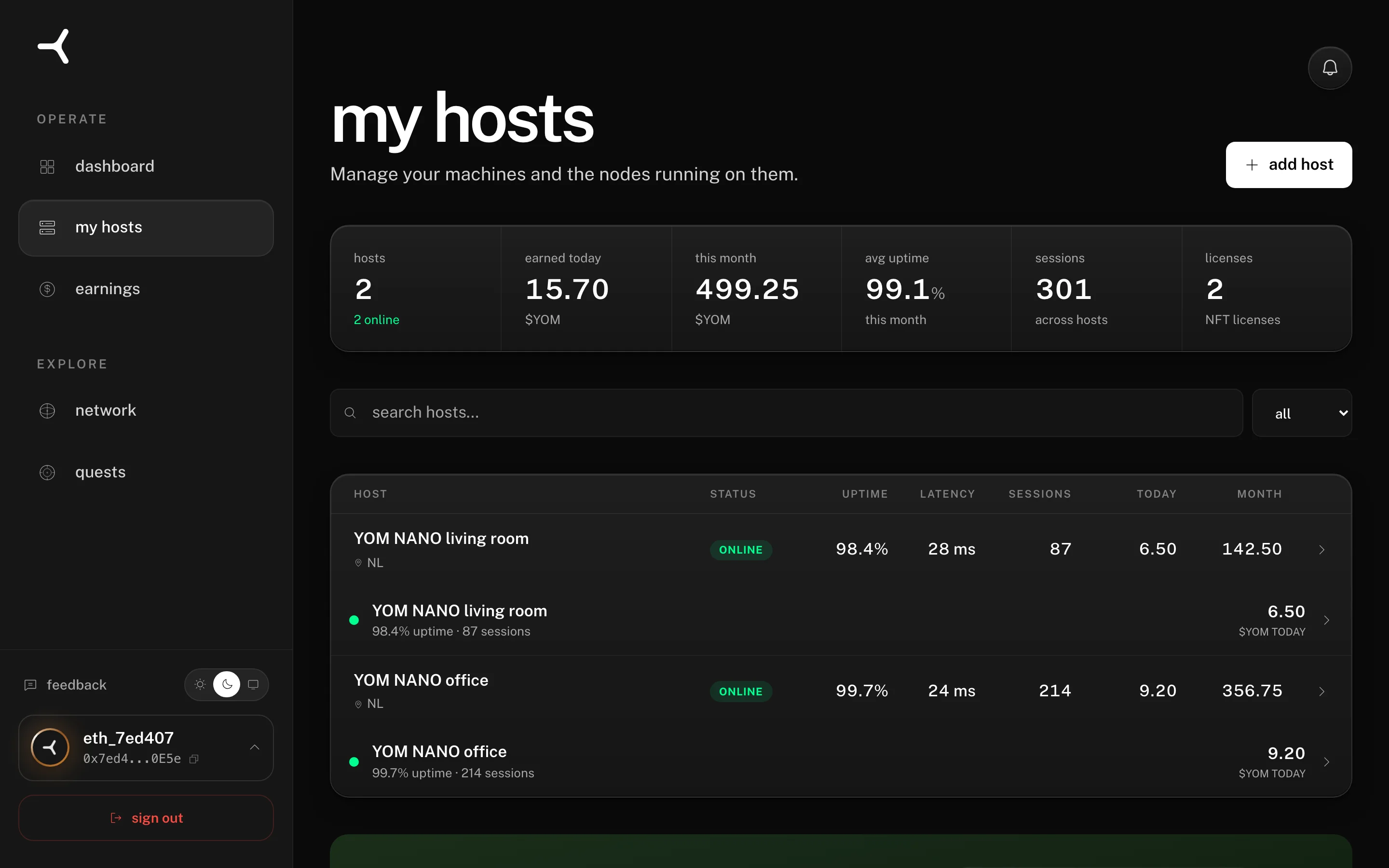
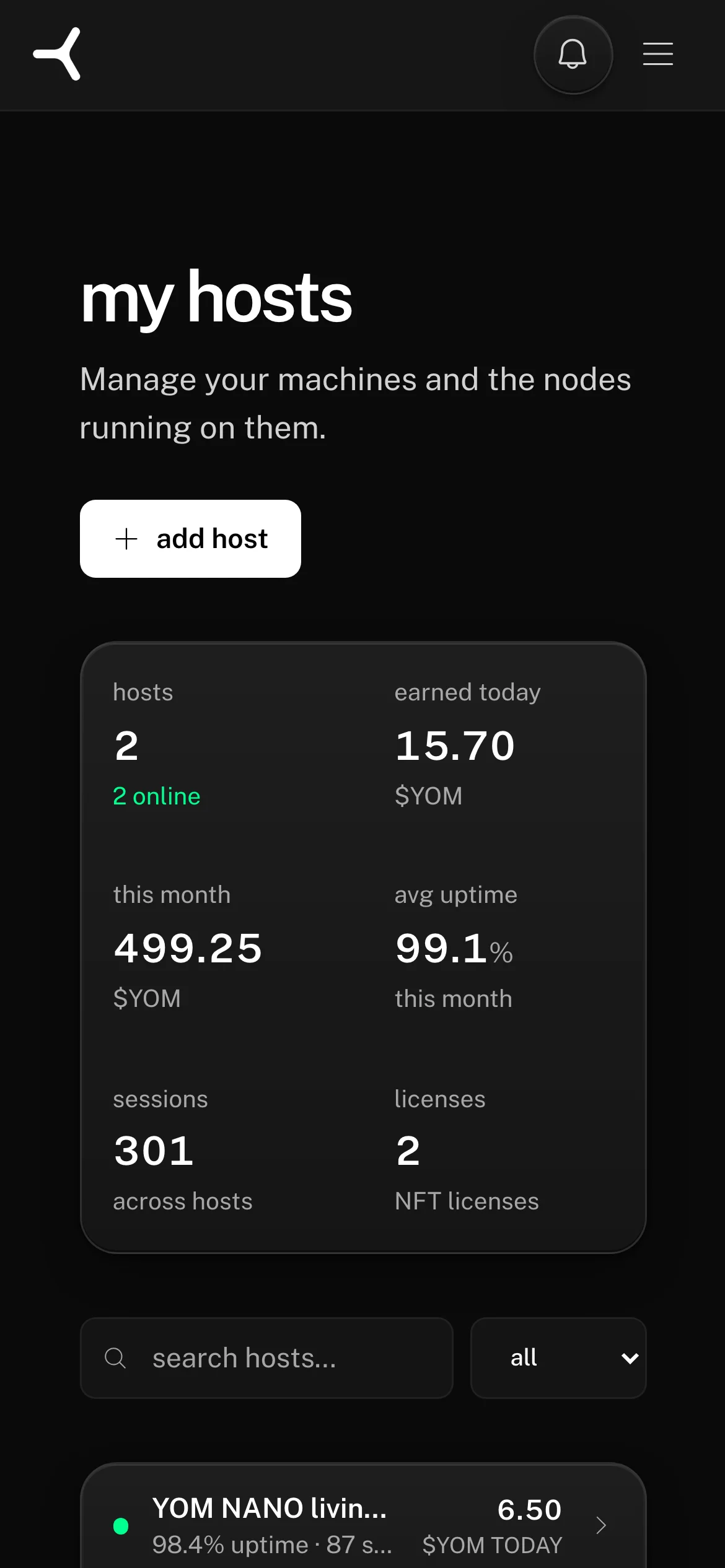
- Open
app.yom.net/my-hostson your phone or laptop, signed in with your wallet - If you see the host listed with status
connecting, the claim worked but the network hasn’t validated the node yet. Continue to step 4. - If you don’t see the host at all, the claim never completed. Go back to step 5 of Setting up your NANO and rerun the QR / pairing flow.
step 4: wait for the validation window
Even after the claim succeeds, the network runs a series of validation checks before flipping status to online:
- Connection sanity (can the node reach the YOM backend with acceptable latency)
- Encoder smoke test (does NVENC respond)
- Container runtime check (Docker + NVIDIA toolkit)
- Geo discovery
These take up to 5 minutes total. connecting for less than 5 minutes is normal. If you’ve been waiting longer, move to step 5.
step 5: read the validation reason
The YOM app shows a status reason next to the connecting / offline label when validation fails. Common reasons and fixes:
- “encoder not responding”: NVENC unavailable on your GPU. Update the NVIDIA driver on the host (the Node OS uses its bundled driver, but a corrupt or older driver from a previous install can persist). If the issue continues, the GPU may not actually support NVENC.
- “container runtime missing”: Docker or NVIDIA container toolkit failed to initialize. Restart the NANO (power down, power up). Most occurrences clear on a clean boot.
- “latency exceeds threshold”: the network’s probes are showing high round-trip times to your node. Check your ISP. If your normal internet has gotten slow, that affects the node too.
- “backend unreachable”: the node can’t talk to the YOM backend. Could be a corporate firewall blocking outbound HTTPS, or your ISP blocking specific ports. Try from a different network briefly to confirm.
step 6: full restart
When in doubt:
- Power the PC down completely
- Wait 30 seconds
- Power back up
- Confirm it boots into the YOM Node OS (not your regular OS)
- Watch the status indicator on the YOM app
A full power cycle resolves a surprising number of issues that aren’t obviously caused by hardware.
step 7: contact us
If you’ve worked through 1-6 and the node is still not online, we can look at telemetry. Reach out with:
- Your wallet address
- The host name (as it appears in My hosts, if it appears at all)
- Your motherboard make + model
- Whether you have any unusual network setup (corporate VPN, ISP-provided router with restrictive defaults, etc.)
- The last status message you saw next to the host
Chat with support in the app →
Can’t sign in, or don’t have an account yet? Email support@yom.net.
We have heartbeat-level telemetry on every node and can usually point at the exact failure within a couple of hours.
Can't sign in, or don't have an account yet? Email support@yom.net
2 / 5 troubleshooting
all articles