
Creating a YOM account
Sign in with email, a social account, your phone, or an existing wallet through Particle Network. The same account works across the YOM ecosystem.
in this article
You can sign in with your email, your phone, a social account, or an existing wallet. All of it runs through Particle Network, a wallet-aggregator that turns any of those into a YOM account in one flow. There’s no password to invent: email and phone use a one-time code, and social login rides on the provider you already trust. The first time you sign in, your account exists.
Behind whichever method you pick sits a wallet. That’s what receives your $YOM rewards and holds anything you own on the network. If you sign in with email, phone, or a social account, Particle creates and secures that wallet for you in the background, so you never touch a seed phrase.
why a wallet?
Your wallet is how you receive $YOM token rewards and prove ownership of any in-network assets (node licenses, NFTs, vesting positions). Using a wallet from the start means there’s no separate “transfer to wallet” step later. Your account is the wallet, and your wallet address is your identity across the whole ecosystem.
You don’t need any technical knowledge to get one. If you sign in with email or a social account, Particle creates a wallet on your behalf in the background, secured by that account. You never see a seed phrase and never install an extension.
your sign-in options
The sign-in screen groups the methods into two families. Both end at the same place, a signed-in account with a wallet address:
- Email, phone, or a social account: enter an email or phone number and Particle sends a one-time code, or pick a social provider (Google, Apple, Microsoft, GitHub, Facebook, Twitch, or LinkedIn) and finish that provider’s login. Either way Particle creates a wallet tied to that login. This is the route for anyone starting fresh.
- An existing wallet: if you already use MetaMask, Phantom, or any WalletConnect-compatible wallet, connect it directly. YOM uses that wallet’s address as your identity.
The buttons on the screen are the source of truth, and the exact provider list can shift as Particle adds options. There’s also an explore in demo mode link if you just want to look around before committing to an account.
One thing to know before you pick: each method produces a different wallet, and each wallet is a separate account. Signing in with Google today and email tomorrow gives you two unrelated YOM accounts. Pick one method and stick with it. See Switching wallets for why this matters.
your first sign-in, step by step
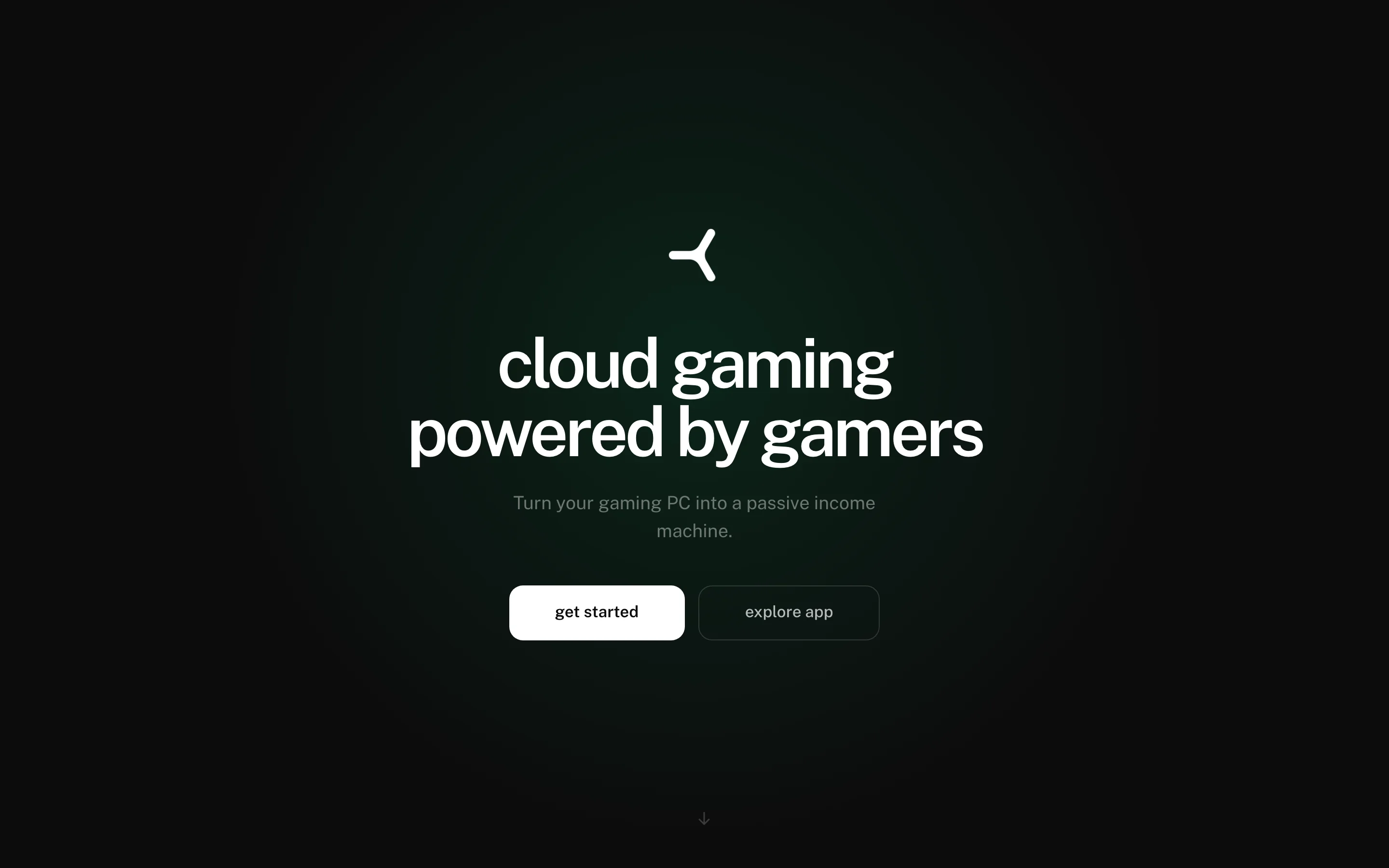
- Visit app.yom.net. This is what you’ll see before signing in:
- Click Sign in in the top right. Particle’s popup appears with the list of sign-in methods. (If nothing appears, allow popups for
app.yom.net. The flow uses one.) - Pick your method and complete it: enter the emailed or texted code, finish your social provider’s login, or approve the connection in your wallet app.
- You may be asked to complete an hCaptcha challenge. This is Particle’s anti-bot protection and is normal. If it keeps rejecting you, turning off a VPN usually fixes it. More fixes in the wallet troubleshooter.
- If you connected an external wallet like MetaMask, it will ask you to sign a message. This signature just proves you control the wallet. It’s free, off-chain, and doesn’t approve any transaction or move any funds.
That’s it. From then on, every visit to yom.net or app.yom.net recognizes you automatically.
what you get
A signed-in account with a wallet address, shown in the top right as a short handle derived from the address. That address is where everything attaches:
- Hosts you register (a YOM NANO or qualifying gaming PC)
- Uptime, earnings, and payout history
- Quest rewards and referral bonuses
- Launchpad participation
if sign-in misbehaves
The common failure modes (a sign-in button that does nothing, a stuck captcha, or the wrong wallet address showing up) all have quick fixes. Work through My wallet won’t connect in order; most issues trace back to browser popups, an ad blocker, or a VPN tripping the captcha.
what to do next
- Here to play? Playing is handled by walter.gg, the consumer platform built on the YOM network. Questions about games, streams, or sessions belong there, not here.
- Here to run a node? Start with the Rig Check to confirm your hardware qualifies, then set up your NANO.
a note on security
YOM never asks for your seed phrase or private key, anywhere, for any reason. That holds on yom.net, on app.yom.net, and in email. If anything YOM-branded asks for them, it’s not us. The sign-in signature described above is the only thing you’ll ever be asked to approve.
Can't sign in, or don't have an account yet? Email support@yom.net
2 / 3 getting started
all articles