
Payout not received
Earned $YOM but nothing in your wallet? Work through the settlement schedule, batch threshold, wallet address, and token display before assuming a payout is.
in this article
- step 1: check your pending balance
- step 2: check the minimum batch threshold
- step 3: verify you’re looking at the right wallet
- step 4: check Snowtrace for the transfer
- step 5: your wallet not showing the token is not the same as not receiving it
- step 6: was your node actually hosting sessions?
- step 7: contact us
Operator payouts are automatic: the settlement contract batches your pending earnings and sends them to your wallet, no claim needed. So when a payout seems missing, the cause is almost always one of a handful of predictable things: timing, threshold, wrong wallet, or a display issue. Work through these checks in order, cheapest first. Most cases resolve at step 1 or 2.
step 1: check your pending balance
Open the Earnings page in the YOM app and look at the pending figure.
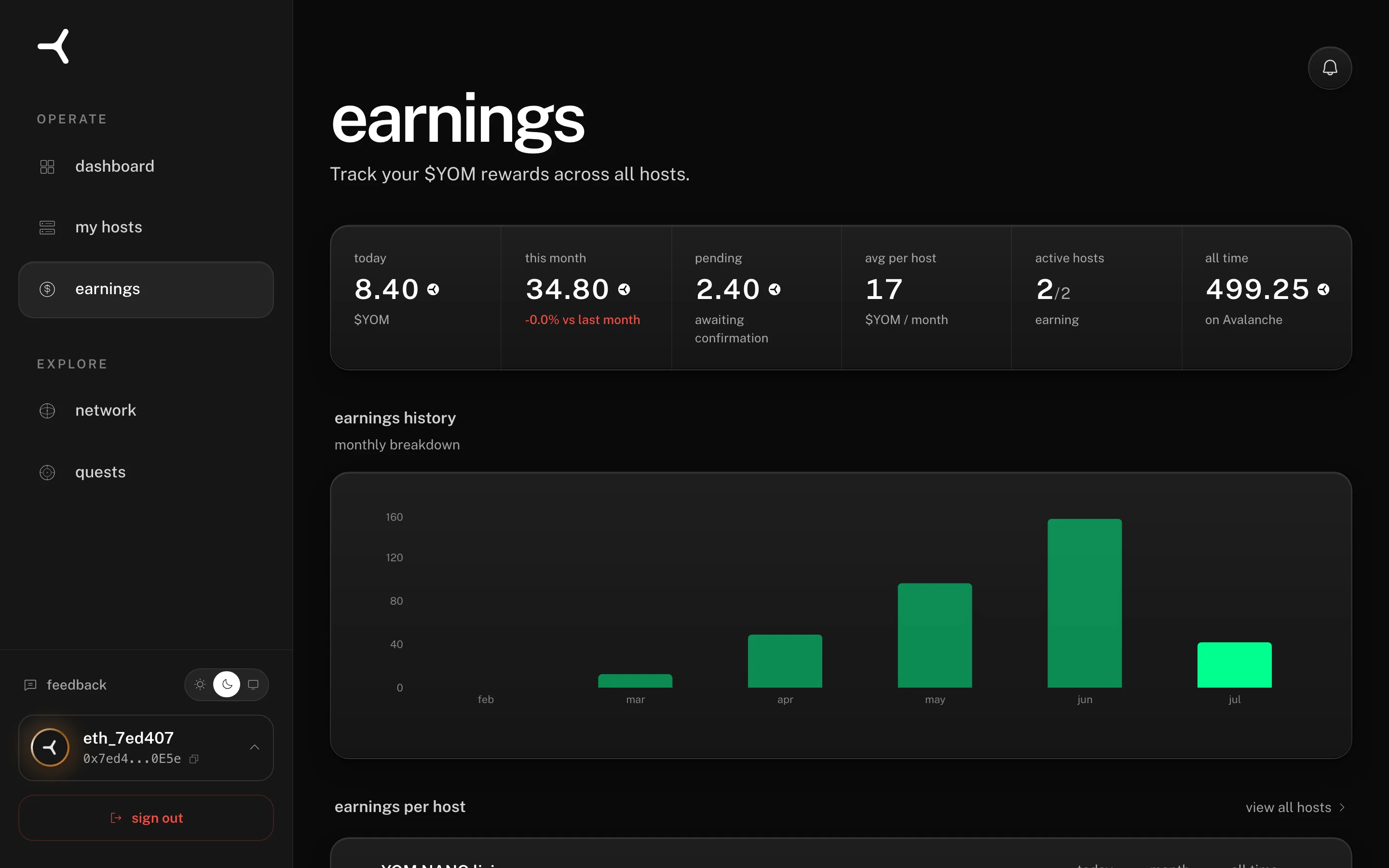
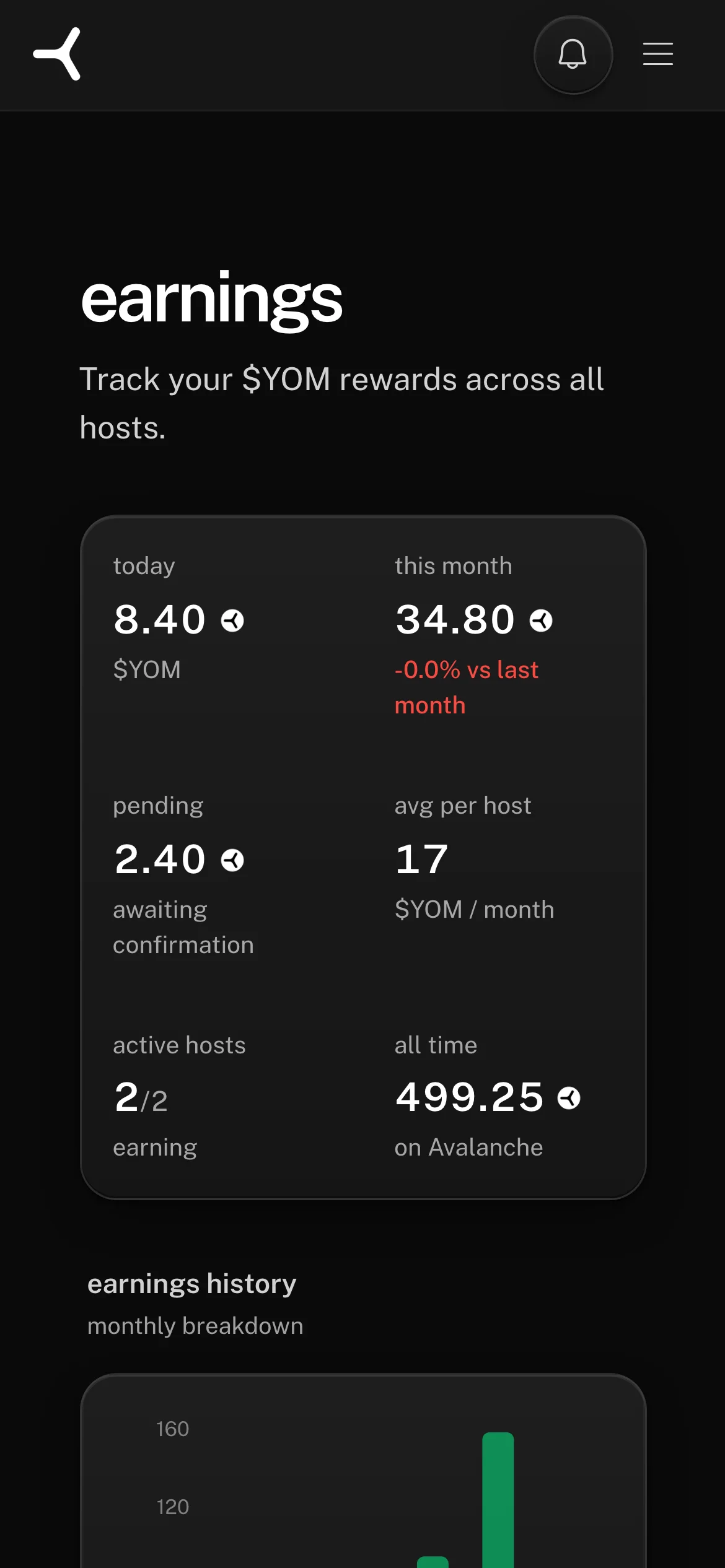
Session earnings pay out once you have accrued 10 completed sessions since your last payout. Until then they sit in “pending”. That’s not a missing payout, that’s the normal cycle. If pending is nonzero, the tokens simply haven’t been sent yet.
If your node hosts a handful of sessions a week, it can be days before you cross the threshold. If pending moved to zero and “this month” went up, the payout landed and the tokens are in your wallet (see step 5 if you can’t see them there).
The two monthly slots are separate and arrive after the month closes, so those are never late mid-month. If you would rather not wait for either, the Claim button pays out on demand and you cover the gas in AVAX.
step 2: check the minimum batch threshold
The threshold is a session count, not a token amount: 10 completed sessions since your last payout. It exists so the transaction fee never eats a meaningful share of the payout, and it may move up or down as network fees move. This prevents the network from spending more on gas than the payout is worth.
Nothing is lost. The balance keeps accumulating in pending and pays out as soon as it crosses the threshold. If your node only hosts occasional short sessions, it can take several batch cycles before the first transfer lands. See Understanding earnings and payouts for how the schedule works.
step 3: verify you’re looking at the right wallet
Each wallet address on YOM is a separate account with its own hosts and its own earnings. If you’ve ever signed in with a different method (Google on one device, MetaMask on another, a different MetaMask account in the same extension), your earnings may be settling to a wallet you’re not currently checking.
- Open the YOM app and note the address you’re signed in with (click your profile in the top right)
- Compare it against the address in the wallet where you’re looking for the tokens
- If they don’t match, sign in with the other wallet and check its earnings page
This is a common one after a device change or a wallet migration. See Switching wallets on YOM if you suspect your earnings live under another address.
step 4: check Snowtrace for the transfer
Payouts are regular ERC-20 transfers on Avalanche C-Chain, which means they’re public. This check tells you definitively whether the tokens were sent:
- Go to Snowtrace
- Search for your wallet address (the one from step 3)
- Open the token transfers tab and look for incoming $YOM around the time the batch should have run
If the transfer is there, the payout arrived. Anything you’re seeing (or not seeing) in your wallet app is a display issue, covered in step 5. If it’s not there and your pending balance dropped, something is genuinely off; skip to step 7.
step 5: your wallet not showing the token is not the same as not receiving it
Wallet apps only display tokens they know about. If $YOM isn’t in your wallet’s default token list, the balance can sit in your address invisibly. Add the token manually:
- Contract address:
0xb6314518b61b4864162c7aE7fdc36261e0A14C4b - Decimals: 18
- Network: Avalanche C-Chain
In MetaMask this is Import tokens → paste the contract address. Other wallets have an equivalent “add custom token” flow. Once added, any balance that was already there shows up immediately. More detail in About the $YOM token.
step 6: was your node actually hosting sessions?
No sessions means no earnings: the network pays for completed sessions, not for being switched on. If your node was offline (or stuck in connecting) during the period in question, there’s nothing to pay out.
Check the session log on the earnings page: each session is listed with timestamp, game, and duration. If the log is empty for the days you expected earnings, the problem is upstream of payouts. Work through My node won’t come online first.
step 7: contact us
If you’ve confirmed pending dropped, the threshold was met, the address matches, and Snowtrace shows no transfer, reach out. Include:
- Your wallet address
- A rough timeframe (which days’ sessions you believe are unpaid)
Chat with support in the app →
Can’t sign in, or don’t have an account yet? Email support@yom.net.
We have full telemetry on every settlement batch and can trace exactly where a payout went, usually within an hour.
Can't sign in, or don't have an account yet? Email support@yom.net
5 / 5 troubleshooting
all articles